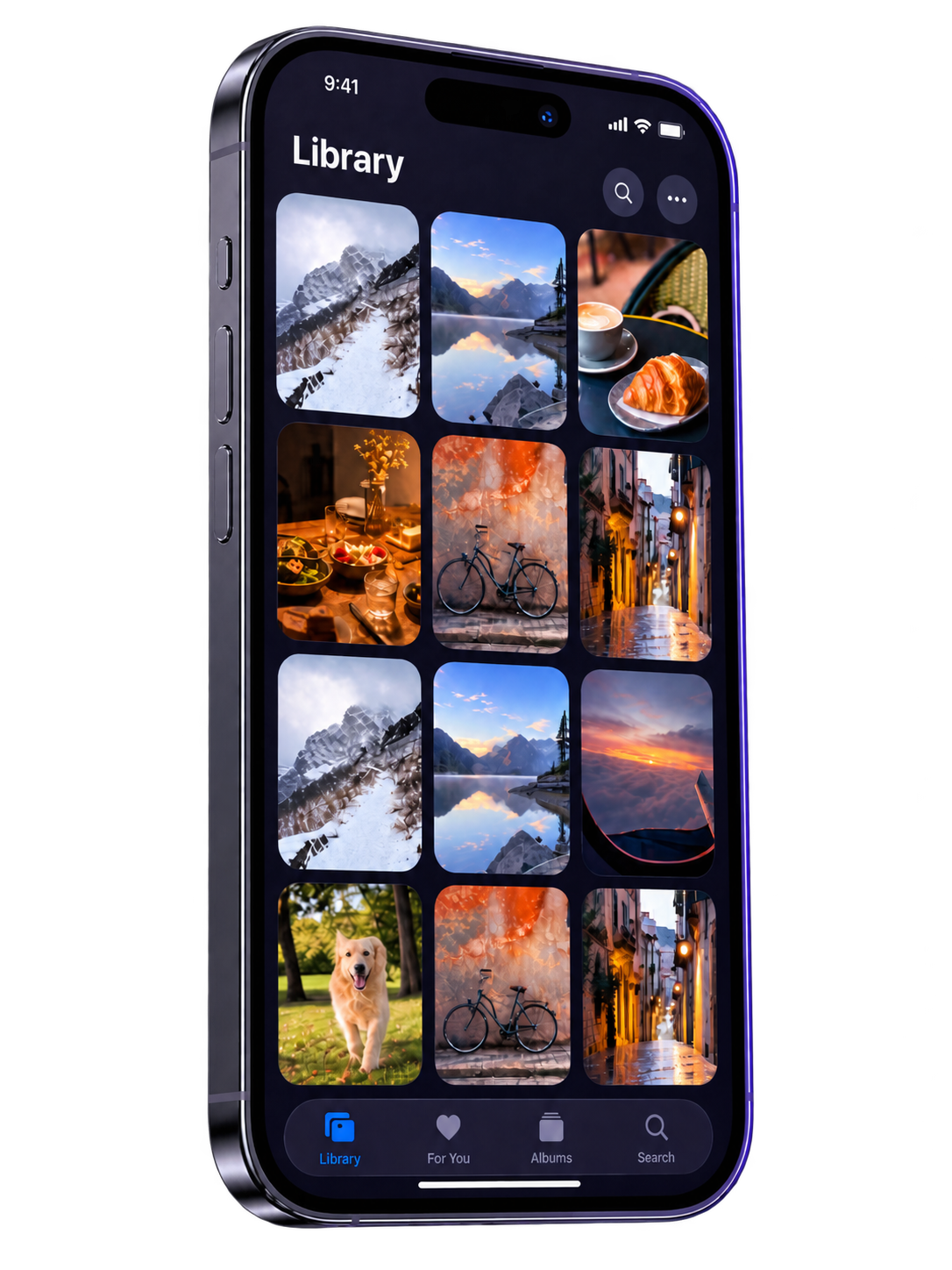

Know what's on your iPhone
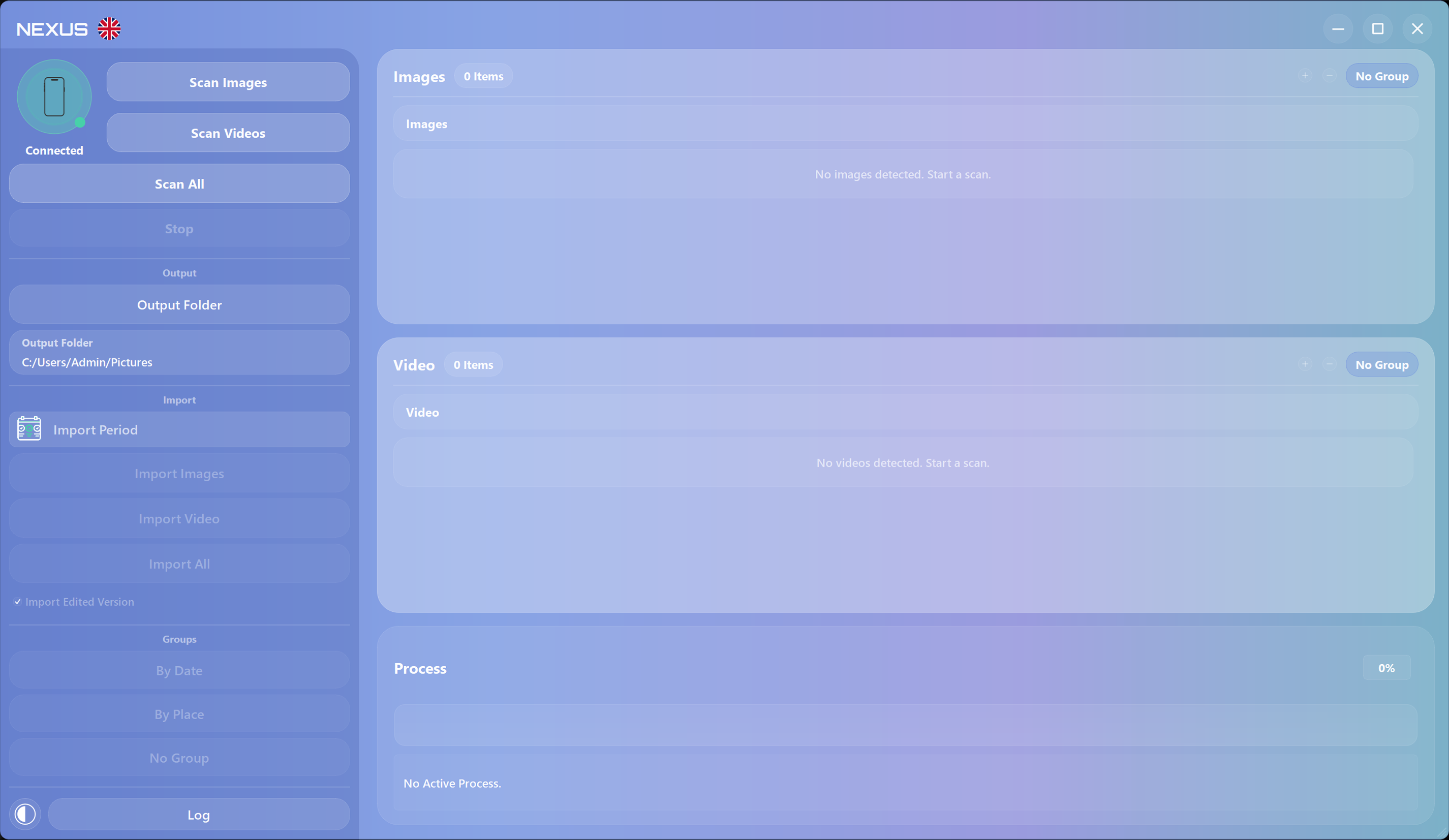
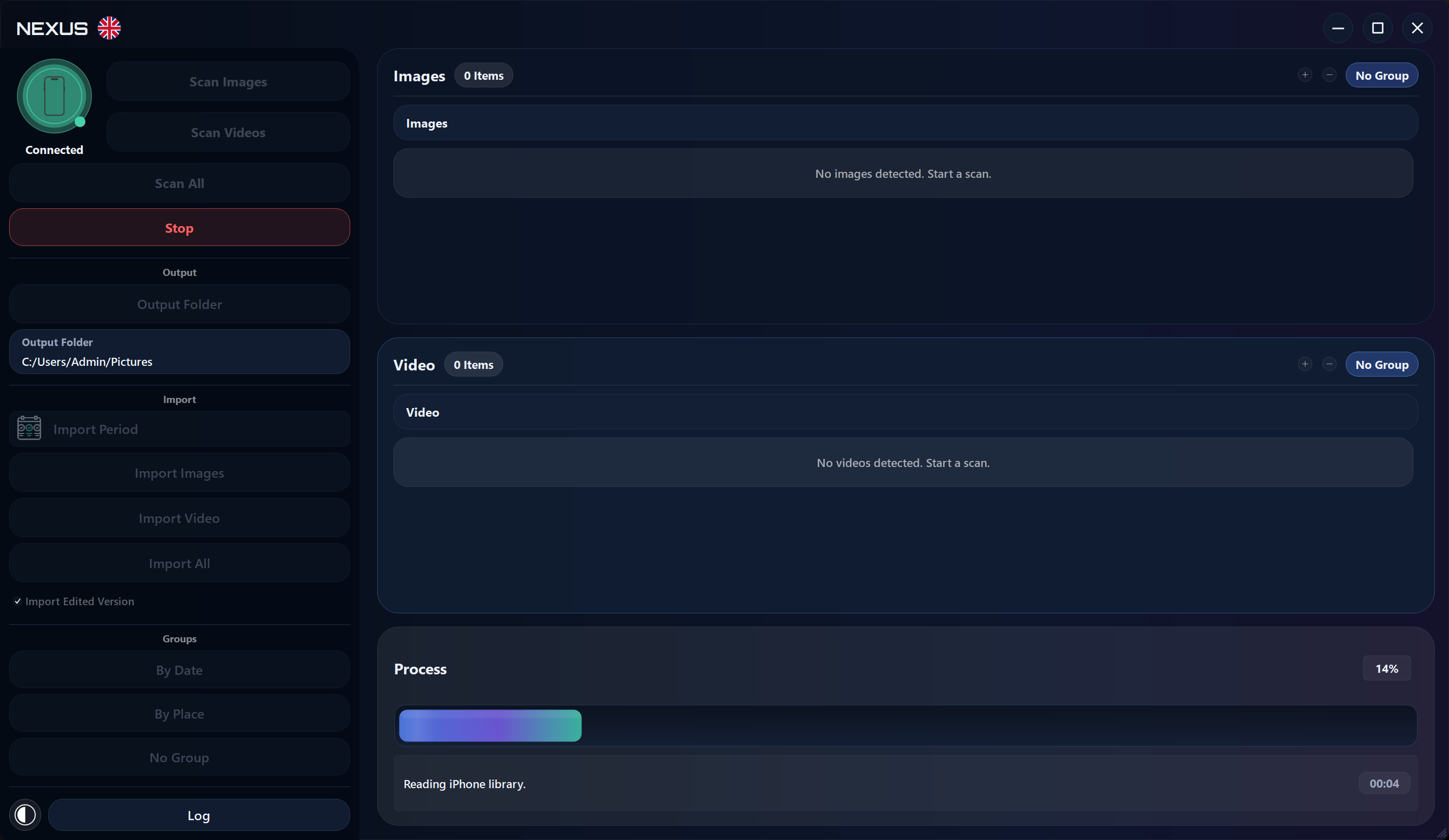
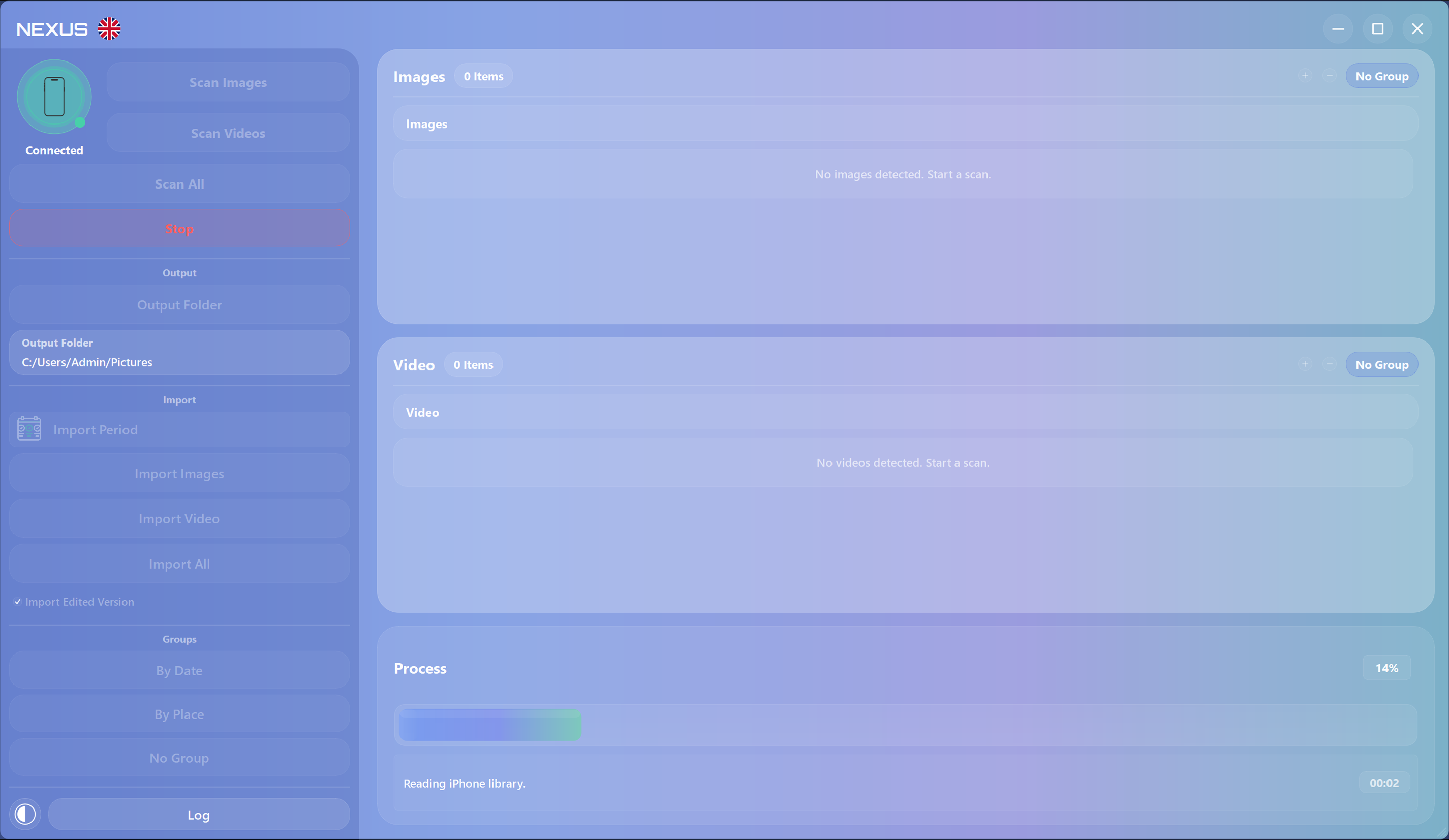
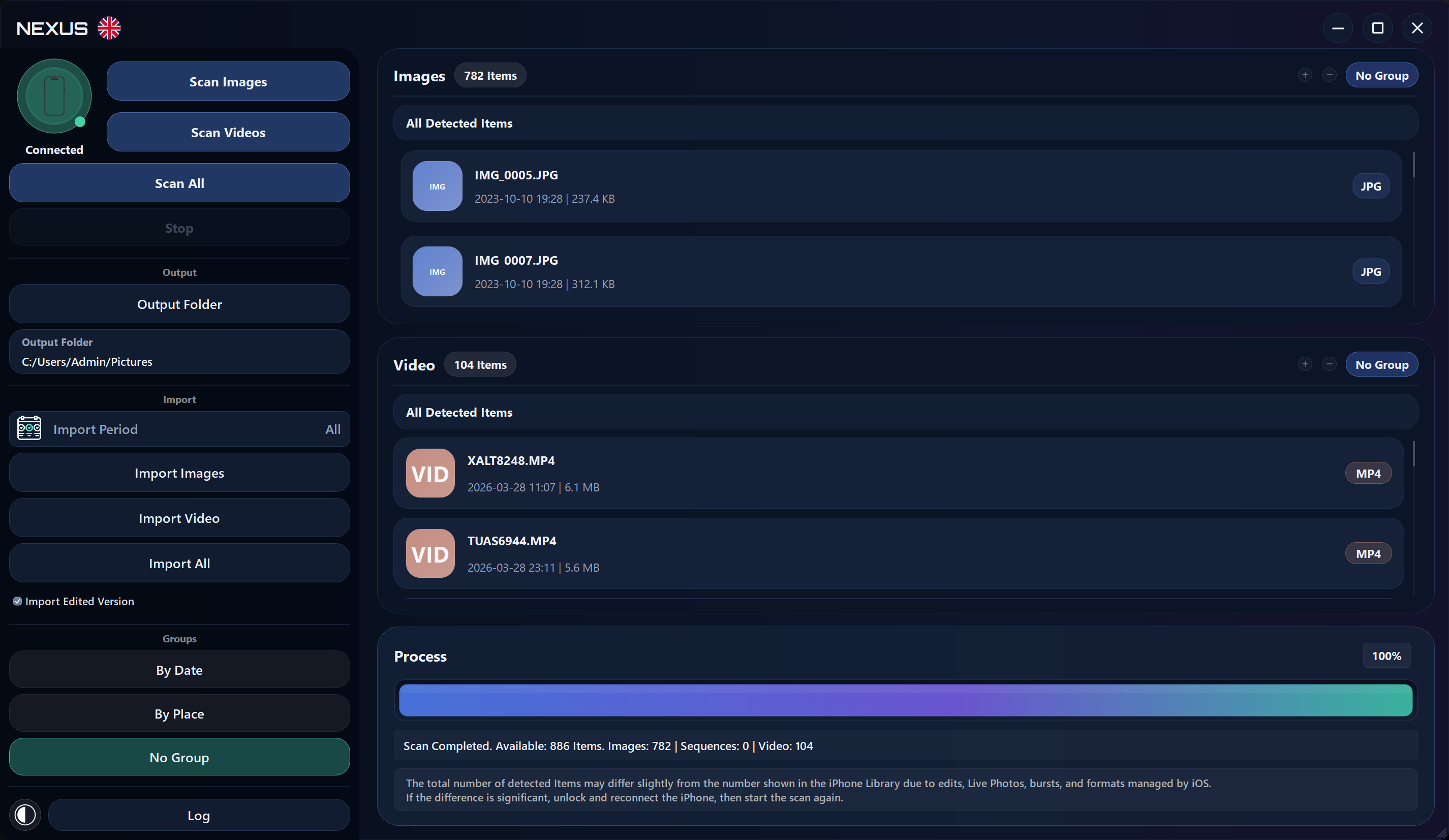
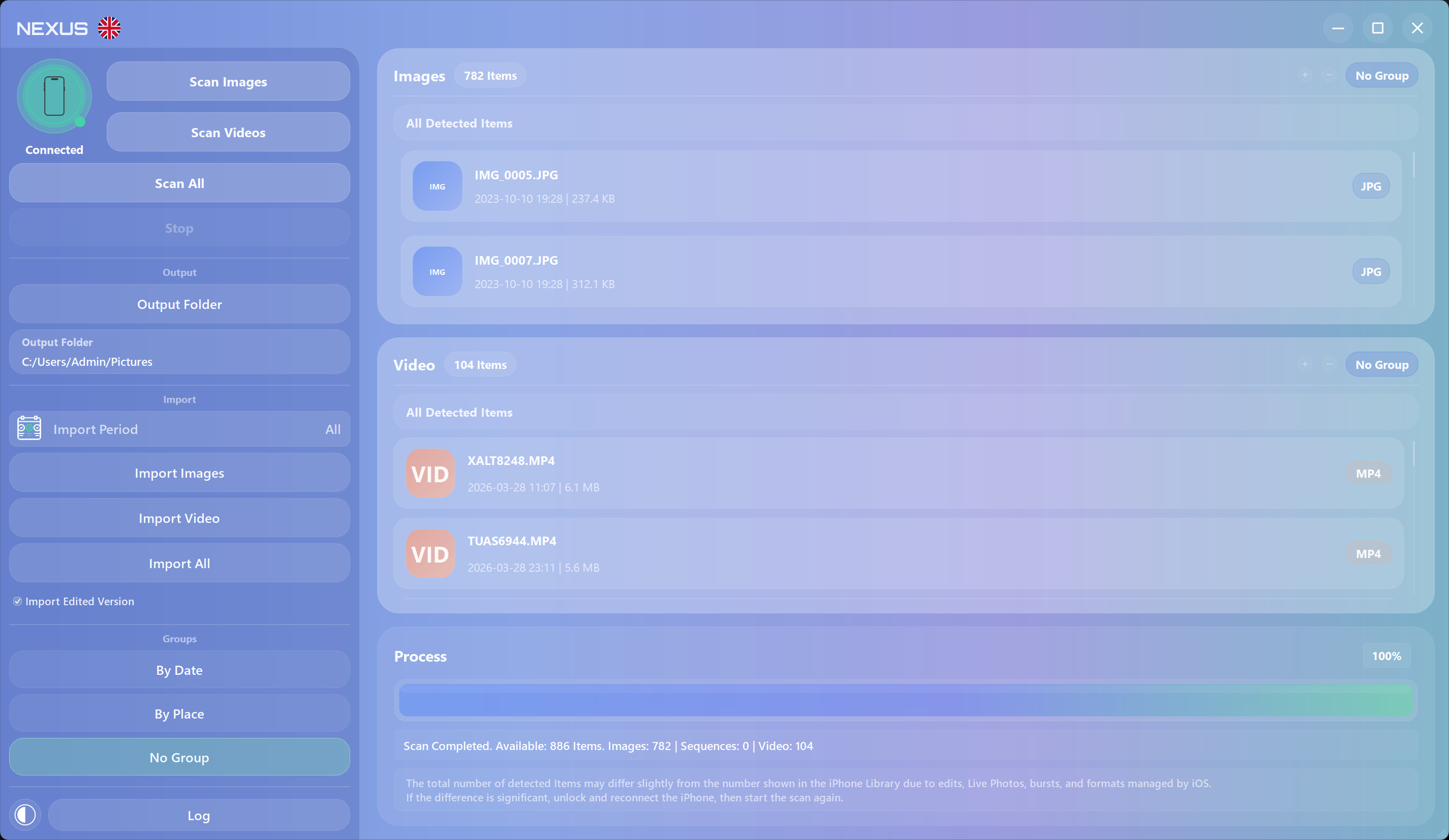
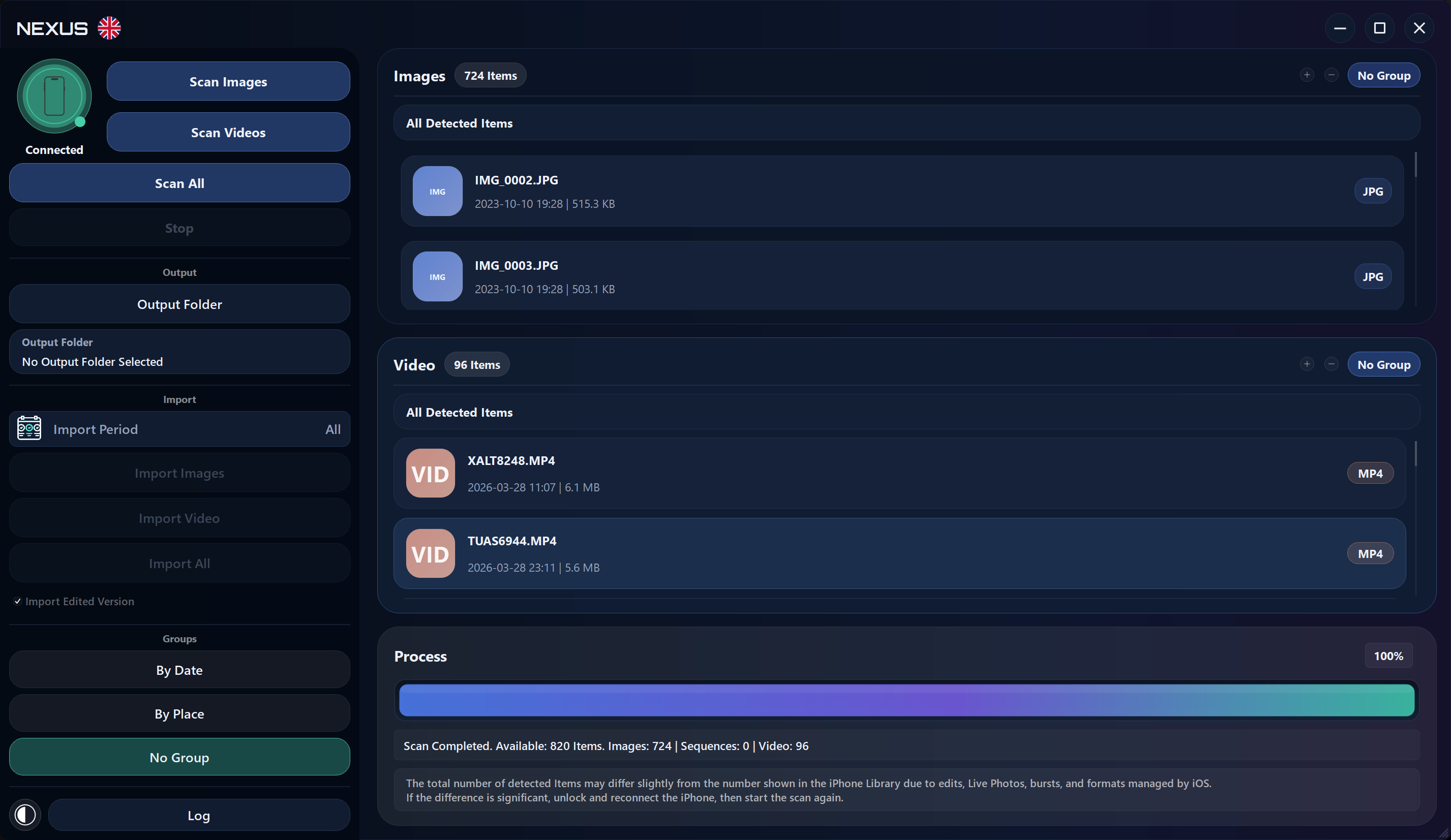
Separate scans, real item counts, previews, and date filters let you understand the library before copying a single file.
 NEXUS
NEXUS NEXUS ARC
See what's there, choose what moves, and organize it locally before a single file leaves your iPhone.
One-time purchase • No account • Local processing • Windows 10/11
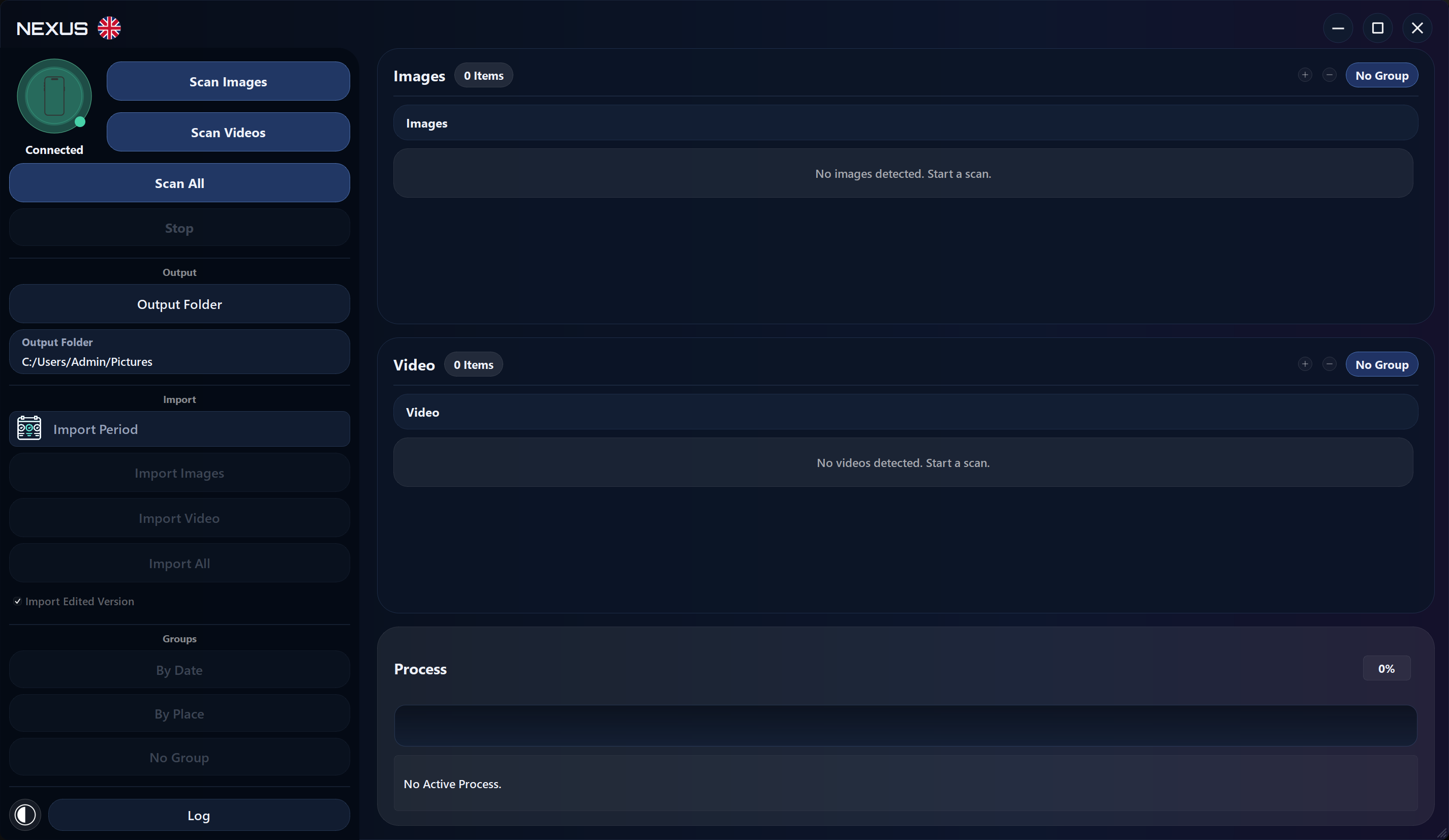
That simple problem is where Nexus began. Moving photos and videos to a PC should feel straightforward, yet too many tools make it difficult to see what was found, what was copied, and where it ended up.
Nexus makes every choice visible before the transfer begins, so your memories arrive exactly where you expect them.
Nexus keeps the handoff visible: understand first, choose next, then import.
Three clear moments, one local path from your iPhone to ordinary Windows folders.
Connect your iPhone with a USB data cable, unlock it, and tap Trust on the phone when prompted.
Find the photos and videos you know from your iPhone on your PC, too. Previews, counts, and import results give you a clear overview of your library and what has been transferred.
Separate scans, real item counts, previews, and date filters let you understand the library before copying a single file.
Nexus handles supported photos, videos, Live Photos, sequences, and edited versions as parts of the same collection.
Group imports by date or by place when location information is available, so your collection stays easy to explore on your PC.
Choose an ordinary Windows folder, ready for editing, printing, archiving, independent backup, or use without Nexus.
Unlock the iPhone, use a USB cable that supports data, reconnect it directly to the PC, and approve the Trust request on the device before scanning again.
With the iPhone connected and unlocked, press Windows + E to open File Explorer, then select This PC in the sidebar. Look for Apple iPhone under Devices and drives. If it is missing there too, check the USB connection and Trust prompt: Windows needs to recognize the phone before Nexus can scan it.
Yes. Make sure the Apple Devices app and Windows are up to date. Open Device Manager from the Start menu and check whether the connected iPhone or Apple Mobile Device USB Driver shows a warning symbol. If it does, follow Apple’s official connection guidance and update the driver through Windows; then reconnect the unlocked iPhone and try again.
Keep the iPhone unlocked, disconnect and reconnect the cable, then check the device screen. The authorization must be accepted on the iPhone before Windows can expose the library.
Live Photos, bursts, edited versions, and formats managed by iOS can be represented differently. If the difference is significant, keep the phone unlocked, reconnect it, and run a fresh scan.
Yes. Choose an image, video, or complete-library scan, then use the available date range and import controls to narrow what moves.
Nexus converts supported HEIC and HEIF images to JPEG during import. The imported images are ready to open, edit, or print on Windows; the originals stay on your iPhone.
Nexus recognizes supported Live Photos, sequences, and edited versions so they can be brought over as part of the same library.
You choose the destination and the available organization rules. The result is a collection of ordinary files in ordinary Windows folders.
Open the destination, verify the imported files and counts that matter to you, and keep an independent backup before removing anything from the iPhone.
See first. Choose carefully. Keep the files where they make sense to you.
Get Nexus Arc from Microsoft Store